The Ultimate Guide to Roblox Cinematography: Mastering Alight Motion and Advanced Utility Tools
Creating a professional-grade Roblox edit is more than just a hobby—it’s a digital art form that has redefined how we view user-generated content in 2026. If you’ve spent any time scrolling through TikTok or YouTube Shorts, you’ve seen them: those buttery-smooth, high-energy montages where the game physics seem to dance to the beat. The bridge between a standard screen recording and a viral masterpiece is almost always Alight Motion.
This guide is designed to take you from the basics of “clean” recording to the advanced motion graphics techniques that define the pro editing scene.
1. The Pre-Production Secret: Getting “Clean” Footage
The foundation of any high-end edit is the raw footage. If you record your screen with the chat box, health bars, and jump buttons visible, no amount of editing in Alight Motion will make it look professional. You need a “clean” slate.
Cinematic Camera Techniques
Standard Roblox camera work is functional for playing, but terrible for filming. To get those sweeping drone shots or fixed-angle perspectives, you need to break the camera’s default behavior.
- Toggle UI: Most polished Roblox experiences have a “Cinematic Mode” or an option to hide the HUD in the settings. Use it.
- Shift Lock & Sensitivity: For smooth panning, lower your mouse sensitivity or use a controller. The analog sticks on a controller provide much more organic, sweeping movements than the jerky “flicks” of a mouse.
The Role of Advanced Utility Tools
In the upper echelons of the editing community, creators often look for ways to manipulate the environment for better shots. This is where the discussion of Roblox Exploits (or “Executors”) becomes a technical necessity rather than a gameplay advantage. In this context, “exploiting” isn’t about winning—it’s about cinematography.
Editors use scripts to unlock the camera (Freecam), change the skybox lighting to match a moody “vibe” edit, or even remove textures to create a “minimalist” look. If you are serious about mobile cinematography, you’ll likely need a reliable tool to manage these scripts. Many creators in the mobile space turn to DeltaExector for its stability. It allows you to run specialized freecam and lighting scripts that standard mobile Roblox doesn’t support, giving you the raw material you need for a 10/10 edit.
2. Setting Up Alight Motion for Success
Once you have your clips, it’s time to move into the lab. Alight Motion is essentially “After Effects for your phone,” and it demands a proper setup to avoid lag and export errors.
Project Configurations
- Aspect Ratio: Always choose 9:16 for TikTok/Shorts or 16:9 for traditional YouTube.
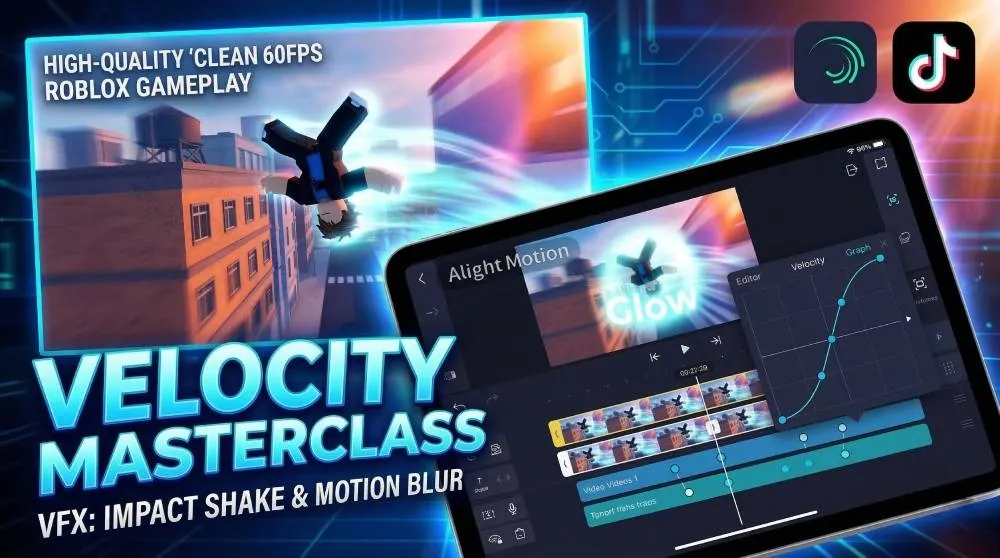
- Frame Rate (FPS): Set your project to 60fps. This is non-negotiable. If you edit at 30fps, your “Velocity” edits will look like a slideshow when slowed down.
- Resolution: 1080p is the sweet spot. While Alight Motion supports higher, 1080p ensures your mobile device doesn’t overheat during complex renders.
3. Mastering Velocity: The Soul of the Edit
“Velocity” is the rhythmic speeding up and slowing down of your footage. It’s the “snap” you feel when the character moves in slow motion and then suddenly accelerates on a beat drop.
The Graph Editor (The “S-Curve”)
The most important tool in Alight Motion is the Graph Editor. To get that professional “elastic” feel:
- Place keyframes on your clip’s speed or “Move & Transform” layer.
- Open the graph icon. Instead of a straight diagonal line (which is boring and linear), create an S-shape.
- The steep part of the curve represents the “speed burst,” while the flat part represents the “slow-mo glide.”
Pro Tip: For combat edits (like Da Hood or BedWars), make the curve extremely steep at the beginning so the “hit” feels instantaneous, then let it drag out in slow motion to emphasize the animation.
4. Advanced Visual Effects (VFX)
Roblox graphics are naturally flat. To make your edit “pop,” you need to layer effects that add depth and intensity.
The “Impact” Shake
A beat drop without a shake is just a transition. To create a high-quality shake:
- Tiles Effect: Always add “Tiles” first and toggle “Mirror” on. This fills the edges of your screen so you don’t see black bars when the camera moves.
- Oscillate: Use this for the actual movement. Set a high magnitude on the beat, then keyframe it down to zero over 0.2 seconds.
- Motion Blur: Never forget this. Set it to roughly 1.50 to 2.00. It blends the frames during the shake, making it feel powerful rather than jittery.
Color Correction (CC)
Professional editors rarely use the raw colors of the game.
- Glow: Apply a subtle glow to your character’s highlights.
- Exposure & Gamma: Use keyframes to create a “flash” on the beat.
- Saturation & Vibrance: Don’t just max them out. Use a “Gradient Overlay” to add a specific tint (like a deep blue or a warm orange) to the shadows to create a cohesive atmosphere.
5. Technical Workflow & Exporting
By the time you reach the 1500-word level of editing expertise, you’ll realize that organization is what saves your project from crashing.
Layer Management
- Group Layers: Once you finish a specific transition, group those layers. This keeps your timeline clean and reduces the strain on your phone’s RAM.
- Pre-Comps: If you’re doing a complex masking edit (like changing your avatar mid-air), do that in a separate project and export it as a high-quality clip before bringing it into your main montage.
Exporting for Quality
TikTok and YouTube have aggressive compression. To fight this:
- Bitrate: Use a high bitrate (at least 20-30 Mbps).
- Codec: H.264 is the standard, but ensure “High Profile” is selected if your device supports it.