How to Edit Minecraft Gameplay Videos Using Alight Motion (Step-by-Step Guide)
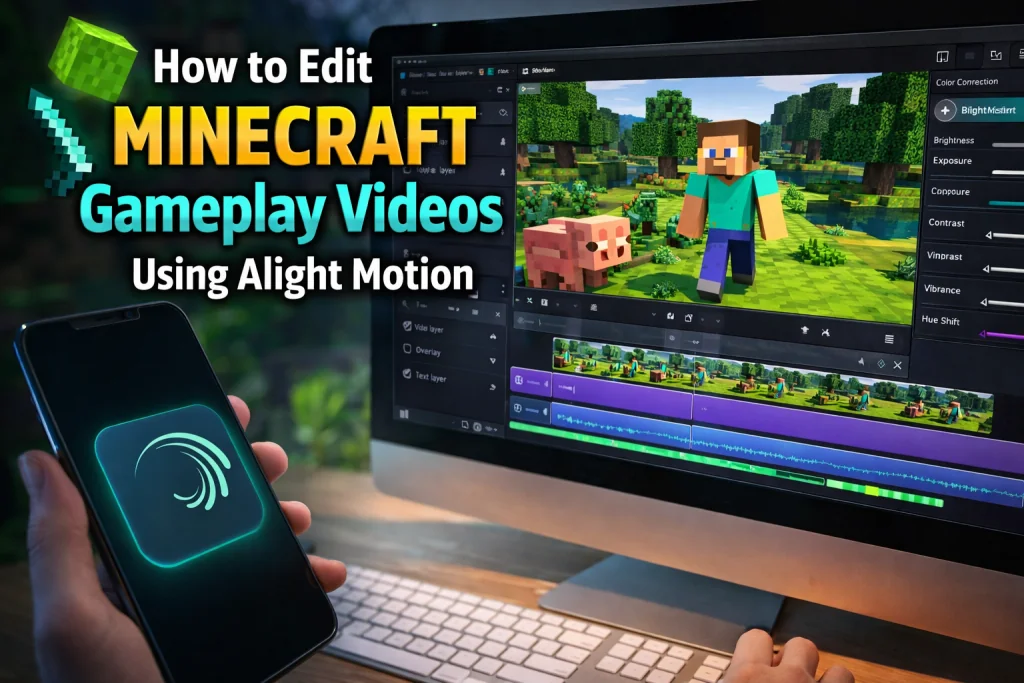
If you’ve been recording Minecraft gameplay on your phone and wondering how to turn raw footage into something worth watching, Alight Motion is one of the strongest tools available on Android right now. It’s a proper motion graphics and video editor — not a basic trimmer — and it handles layered timelines, keyframe animation, and custom effects without requiring a desktop setup.
This guide walks you through the full editing process, from importing your clips to exporting a finished video.
Why Alight Motion Works Well for Minecraft Content
Most mobile video editors flatten everything into a single track. Alight Motion uses a layer-based timeline, which is closer to how desktop editors like Adobe Premiere or DaVinci Resolve work. For Minecraft videos specifically, this matters because you’re often working with multiple elements — gameplay footage, facecam, text overlays, background music, sound effects — and you need to control each one independently.
The app also supports vector graphics natively, which makes adding sharp, scalable text and animated elements much cleaner than raster-based alternatives. It exports in up to 4K and supports frame rates from 24fps up to 120fps, which is useful if you recorded on a high-refresh-rate device.
The free version watermarks your export. The Pro version, available as a subscription through the Play Store or as a modified APK in the Android sideloading community, removes that restriction and unlocks additional effects and export settings.
Step 1: Set Up Your Project
Open Alight Motion and tap the + icon to create a new project. Set your resolution before importing anything — for YouTube or TikTok, 1080×1920 (vertical) or 1920×1080 (horizontal) are standard. Choose 30fps for standard gameplay or 60fps if your recording matches that frame rate.
Give the project a name that corresponds to the video — this becomes important when you’re managing multiple drafts.
Step 2: Import Your Gameplay Footage
Tap the + button inside the timeline to add a layer, then select Video from the media browser. Navigate to your screen recording or captured gameplay file. Descargar Minecraft on Android records well through the built-in screen recorder available in the notification shade on most Android skins — MIUI, One UI, and ColorOS all include one.
Once imported, your clip appears as a layer in the timeline. Drag the edges of the layer to trim the start and end. For longer recordings, scrub through and cut sections by splitting the clip — tap the layer, position the playhead at the cut point, and use the scissors tool to split.
Step 3: Add Music and Sound Effects
Tap + again and add an Audio layer. Alight Motion supports MP3 and WAV files. Import your background track and position it beneath the video layer in the timeline. Adjust the volume by tapping the audio layer and using the volume slider — Minecraft gameplay videos typically work well with music sitting around 20–30% relative volume so the game audio or voiceover stays clear.
For sound effects — hits, explosions, UI sounds — add each as a separate audio layer and align them to the corresponding visual moment using the timeline.
Step 4: Add Text and Titles
Tap + and select Text. Type your title, choose a font — Alight Motion has built-in options and supports custom font imports via .ttf files — and set the size and color. For Minecraft-style content, bold block fonts with high contrast work well against the typical pixel-art background.
To animate text entering the screen, select the text layer, tap the keyframe icon, and set your first keyframe at the starting position. Move the playhead forward a few frames, shift the text to its final position, and set a second keyframe. Alight Motion interpolates the movement automatically. You can adjust the easing curve — ease-in, ease-out, or custom bezier — by tapping on the keyframe diamond in the timeline.
Step 5: Use Effects and Color Grading
Tap a video layer and select Effects. Alight Motion includes blur, glow, chromatic aberration, and color correction tools built in. For Minecraft footage, a slight sharpening filter improves the look of pixel textures, especially on lower-resolution recordings.
For color grading, use the Color adjustment effect to lift the shadows slightly and add contrast to the midtones. Minecraft’s color palette is already high-saturation, so subtle adjustments go further than aggressive ones.
Step 6: Export Your Video
When the edit is complete, tap the export icon in the top right. Select your resolution and frame rate — match them to what you set at the start. For YouTube uploads, MP4 with H.264 encoding at high bitrate is the most compatible output. For TikTok or Instagram Reels, vertical 1080×1920 exports cleanly without re-encoding on upload.
Alight Motion renders on-device, so export time depends on your hardware. A two-minute video on a mid-range Snapdragon device typically renders in under five minutes.
Final Thoughts
Alight Motion sits in a practical middle ground between casual clip editors and professional desktop software. For Minecraft Gratis creators working entirely on Android — recording, editing, and uploading from a single device — it covers everything the workflow needs. The keyframe system, layered timeline, and clean export options make it a genuinely capable tool once you’ve spent a few sessions learning where everything lives.
Start with one or two layers on your first project, get comfortable with the timeline, and build up to more complex edits from there. The learning curve is real, but it’s short.